Use the macOS Volume Slider With External Monitor Speakers
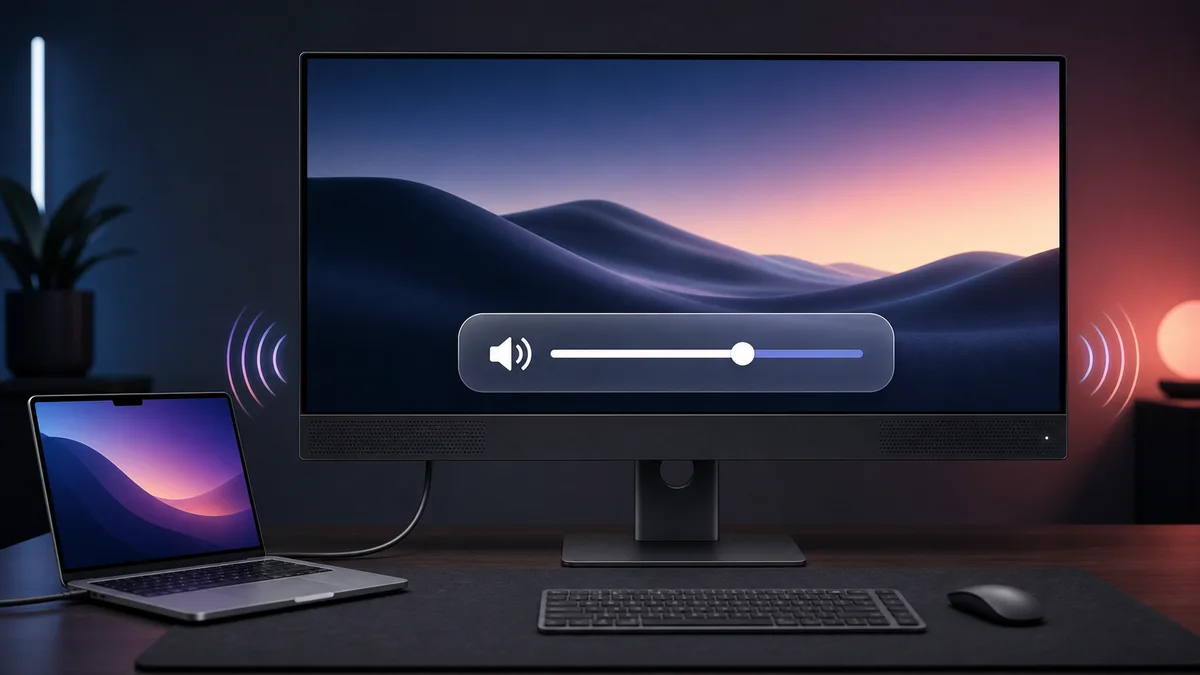
When a Mac sends audio to a monitor over HDMI or DisplayPort, macOS often disables the volume slider. Mac Monitor Volume fixes that by adding a controllable output for your monitor speakers.
I wrote about this problem in 2021 and recommended MonitorControl. It is still useful if you also want brightness controls. Mac Monitor Volume is a better fit if you only want the normal macOS volume slider, mute control, and keyboard volume keys without another menu bar app.
Install Mac Monitor Volume
-
Enable DDC/CI in your monitor’s settings.
-
Open Terminal and run:
/bin/zsh -c "$(curl -fsSL https://raw.githubusercontent.com/timleland/mac-monitor-volume/master/scripts/setup.sh)" -
Choose Install or update.
-
Open Control Center → Sound and select the monitor output ending in +.
That is it. Setup downloads what it needs, asks for your administrator password, and briefly restarts audio.
This preview requires an Apple Silicon Mac running macOS 13 or later. Your monitor must have speakers connected over HDMI, DisplayPort, or Thunderbolt and support DDC/CI volume control. Direct connections work best.
If Terminal says developer tools are missing, run xcode-select --install and then run the setup command again.
To diagnose or uninstall Mac Monitor Volume, run the same setup command and choose Diagnose or Uninstall.