How to Stop Gmail From Opening New Emails in Full Screen
Gmail has a setting called Default to full-screen for the compose window. If it is turned on, every new email opens in the larger centered compose view instead of the smaller box in the bottom-right corner.
This option was harder to find than it should be. I kept looking in Gmail settings, but it is not there. It is inside the compose window menu.
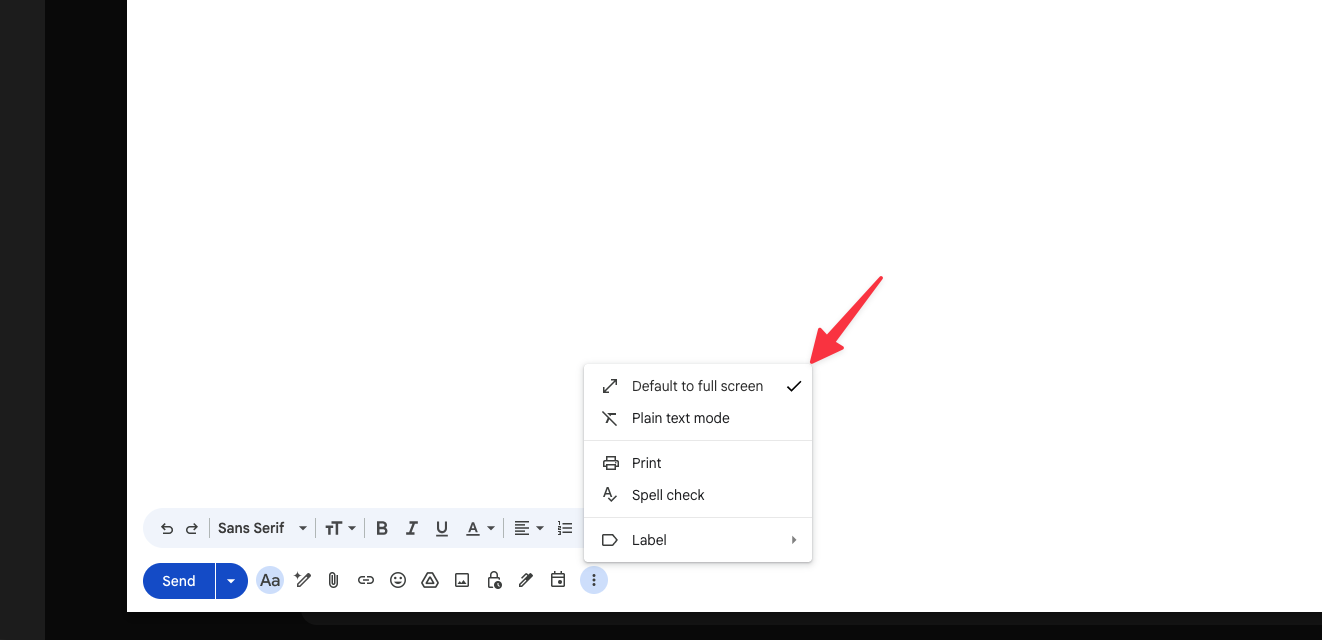
How to turn off full-screen compose in Gmail
- Open Gmail in your browser.
- Click Compose.
- In the compose window, click the three dots in the bottom-right corner.
- Click Default to full-screen so the checkmark disappears.
- Close the draft and click Compose again to test it.
That should put Gmail back to the smaller compose window.
What if the email is already full screen?
If the current message is already open in the larger view, you can still use the same menu. Look for the three dots at the bottom of the compose window, then uncheck Default to full-screen.
If you only want to shrink the current draft, click the diagonal arrow icon in the top-right of the compose window. That changes the current email. The Default to full-screen option controls what happens next time you click Compose.
Why Gmail keeps opening new emails full screen
This usually happens because Default to full-screen got turned on at some point. It is a toggle, but Gmail does not make that very obvious.
Most guides I found explain how to make Gmail compose full screen by default. That is useful if you want a bigger writing area, but it is not much help when you are trying to get the normal small compose window back.
Other ways people search for this
People describe this a few different ways, but they all point to the same Gmail option:
- Gmail compose window full screen
- Gmail default to full-screen
- Gmail new message opens full screen
- Turn off Gmail full screen compose
- Gmail compose opens in large window
Small setting. Weird hiding spot. Hopefully this saves you a few minutes.