Free Golf Swing Analyzer
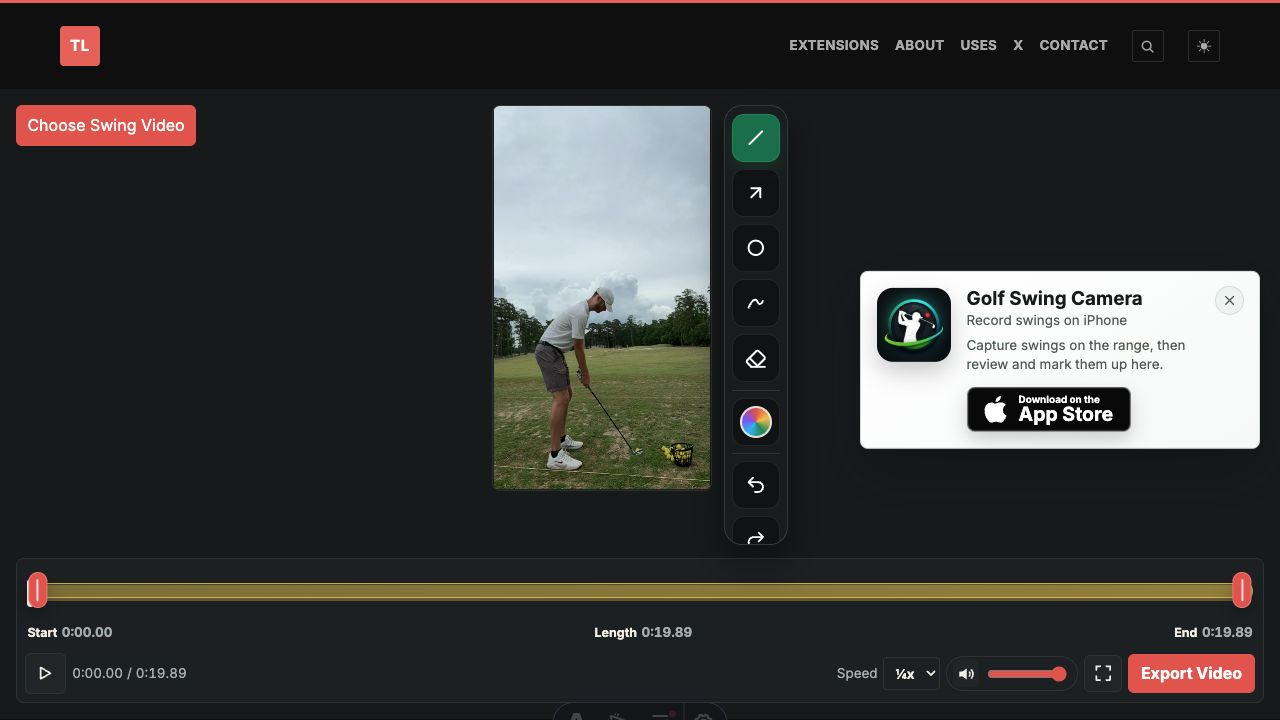
I built a new free tool for reviewing golf swings in your browser:
It lets you drop in a swing video, slow it down, step frame by frame, draw simple coaching notes, trim the useful part, and export a marked-up video.
No account. No lesson platform. No complicated setup.
Why I Built It
I already built Golf Swing Camera for iPhone because recording swings is more annoying than it should be.
But there is another workflow I kept running into: reviewing a swing on a bigger screen.
Golf pros, coaches, and players often get sent a video file. Maybe it came from an iPhone. Maybe it came from a launch monitor bay. Maybe a student texted it over after a range session. Either way, the job is usually the same:
- Slow it down.
- Step through impact.
- Draw a line or arrow.
- Trim the important part.
- Send back something clear.
Most video editors can technically do this. They are also way more tool than you need.
This is meant to be the quick version.
How To Use It
Open the Golf Swing Analyzer and choose a swing video.
You can also drag a video onto the player. Down-the-line and face-on videos both work. High frame-rate clips are best because they hold up better when you slow everything down.
If you just want to try it first, click Try Demo Swing. It loads a sample swing so you can test slow motion, frame stepping, drawing, trimming, and export without finding a video first.
Use the player controls to review the swing:
- Press Space to play or pause.
- Use the left and right arrows to move frame by frame.
- Use ⅛x, ¼x, ½x, or 1x speed depending on what you are looking for.
- Use Full screen when you want the video to take over the screen.
When you want to mark up the video, use the drawing tools beside the player. On mobile, the tools stay tucked away until you open them.
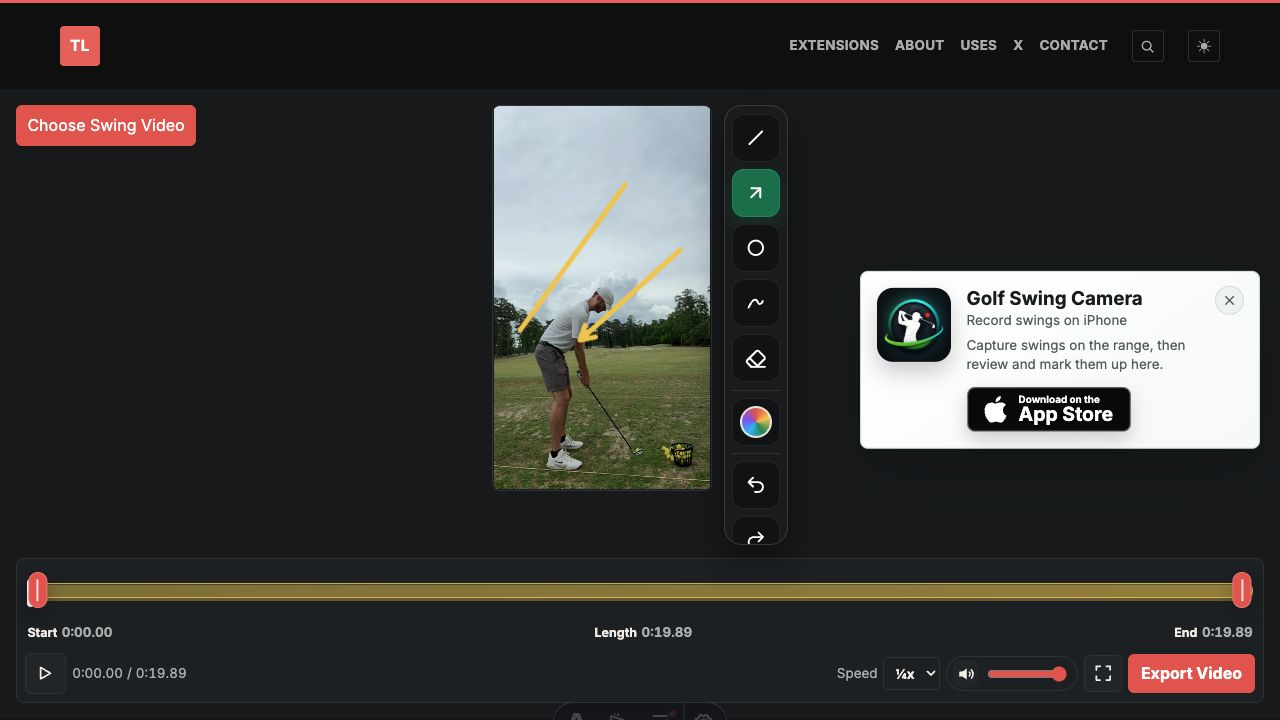
The drawing tools are simple on purpose. You can add:
- Lines for shaft plane, spine angle, or head movement.
- Arrows to call out a move.
- Circles around setup, grip, ball position, or impact.
- Freehand notes for quick feedback.
You can also move and resize the marks after drawing them. That matters. If a line is close but not quite right, you should not have to delete it and start over.
Trimming And Exporting
Most swing videos have extra dead time at the start or end.
Use the timeline handles to keep only the useful part of the swing. Drag the start and end handles around the part you want. The highlighted section is what gets exported.
When it looks right, click Export Video.
The exported video includes the drawings and uses the current playback speed. If you are reviewing at ¼x, the exported clip comes out slowed down too. That makes it easier to send a student or friend a video that shows the issue without making them scrub around.
When The iPhone App Is Better
The web tool is for reviewing videos you already have.
If you are actually recording swings at the range, use Golf Swing Camera for iPhone.
The iPhone app is built for capture. Set up the phone, start a session, and swing. It can record in slow motion, trim around the swing, keep clips in a local library, and make review faster right after you hit the shot.
The way I think about it:
- Use the iPhone app to record better swing videos.
- Use the browser tool to review, mark up, trim, and send feedback from a bigger screen.
They solve different parts of the same problem.
Try It
Try the free tool here: Golf Swing Analyzer.
Install the native app here: Golf Swing Camera on the App Store.