Use Google Home to Control Wireless Power Outlets
Update – Just published a better method
This part 2 for my guide on how to control cheap wireless power outlets using a Google Home and a raspberry pi. Part 1 covered Siri and HomeKit. Part 3 will cover the Amazon Echo. This tutorial assumes you already setup the outlets.
Steps to Setup Google Home to control Wireless Power Outlets
- Create an IFTT account.
- Create a new service on IFTT
- For the if service choose Google Assistent then Say a simple phrase

- Fill out the options for your voice commands. For example, “Turn on the lamps”
- For the that service, choose Google Drive then Add row to spreadsheet
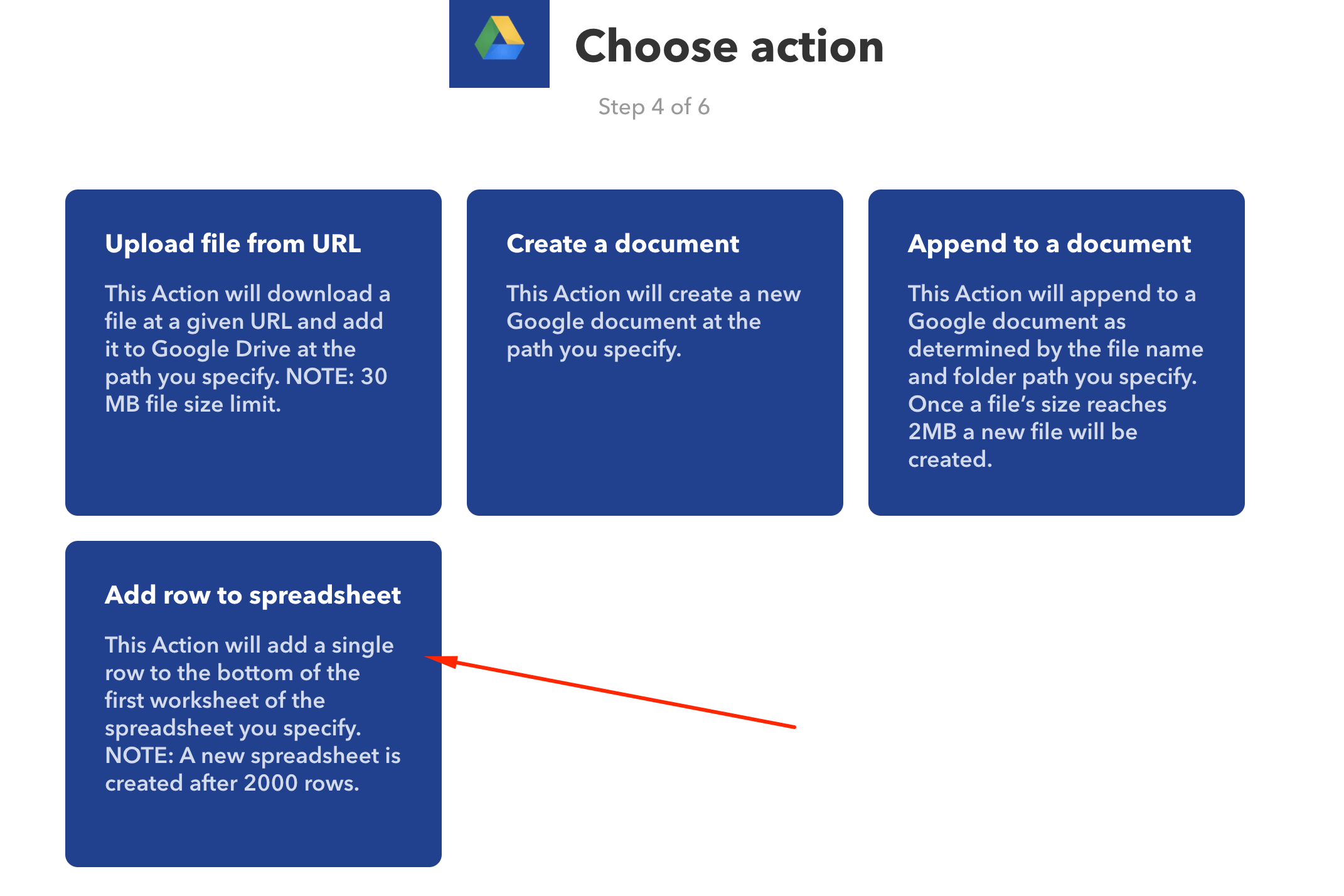
- Add the outlet code for the row that will be added to the spreadsheet
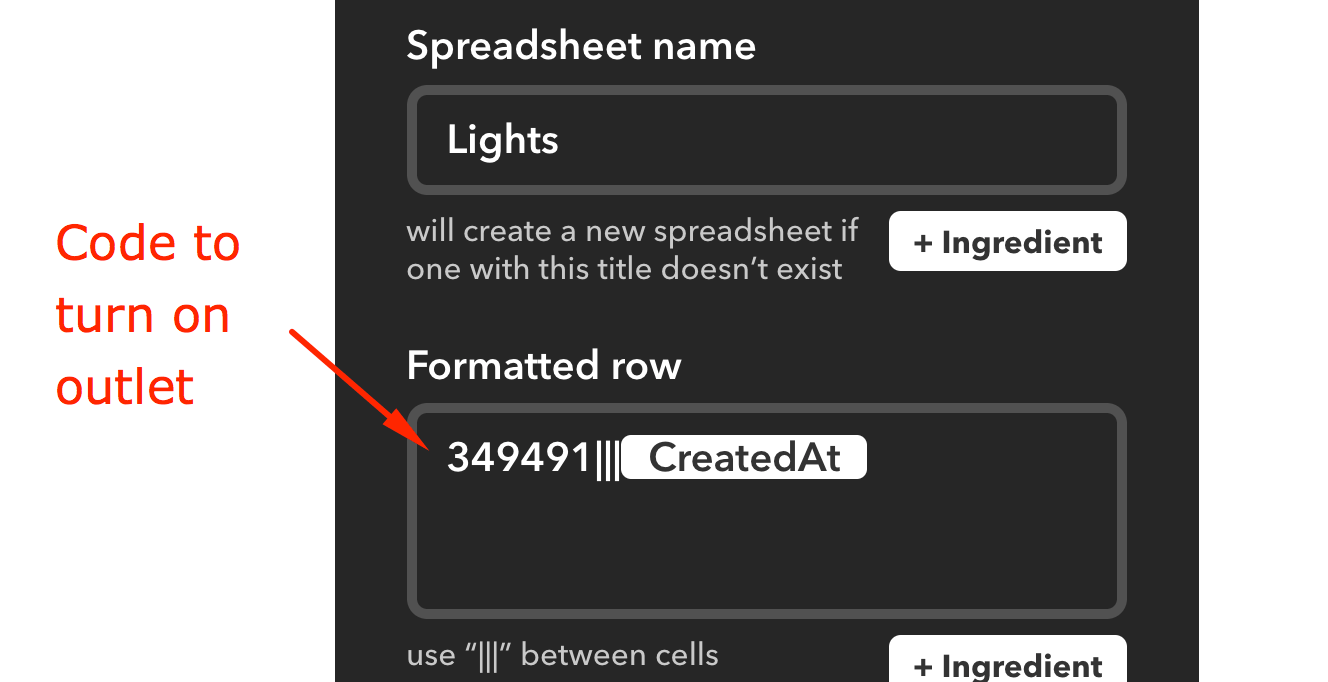
- Test your phrase to make sure it’s adding the code to the google spreadsheet. (Make sure you add the header record OutletId to your spreadsheet)

- You will want to follow steps 1-5 to add the on and off codes for all of your outlets
- Now you want to share the spreadsheet so your raspberry pi can access it

- You should now be able to view a json format of your spreadsheet at https://spreadsheets.google.com/feeds/list/YOUR_SPREADSHEET_ID/1/public/values?alt=json (Replace YOUR_SPREADSHEET_ID with the ID from your google sheet url)
- Now login to your raspberry pi and run:
sudo nano /home/pi/googlehome.py
- Paste in this python script. Make sure you replace YOUR_SPREADSHEET_ID with your ID
- Test the everything work by running and saying your voice command:
python /home/pi/googlehome.py
- For the if service choose Google Assistent then Say a simple phrase
Great job if everything is working so far!
Follow the steps below to get the script to start when your pi reboots.
Start the script on reboot
- Run this command and paste this file
sudo nano /etc/systemd/system/googlehome.service
-
Create a user for the service
sudo useradd --system googlehome
-
Reload services
sudo systemctl daemon-reload
-
Enable the service
sudo systemctl enable googlehome
- Start the service
sudo systemctl start googlehome
- Reboot and the script should be running. If it crashes it will attempt to restart
Please leave a comment below if you have any questions or if this helped you.